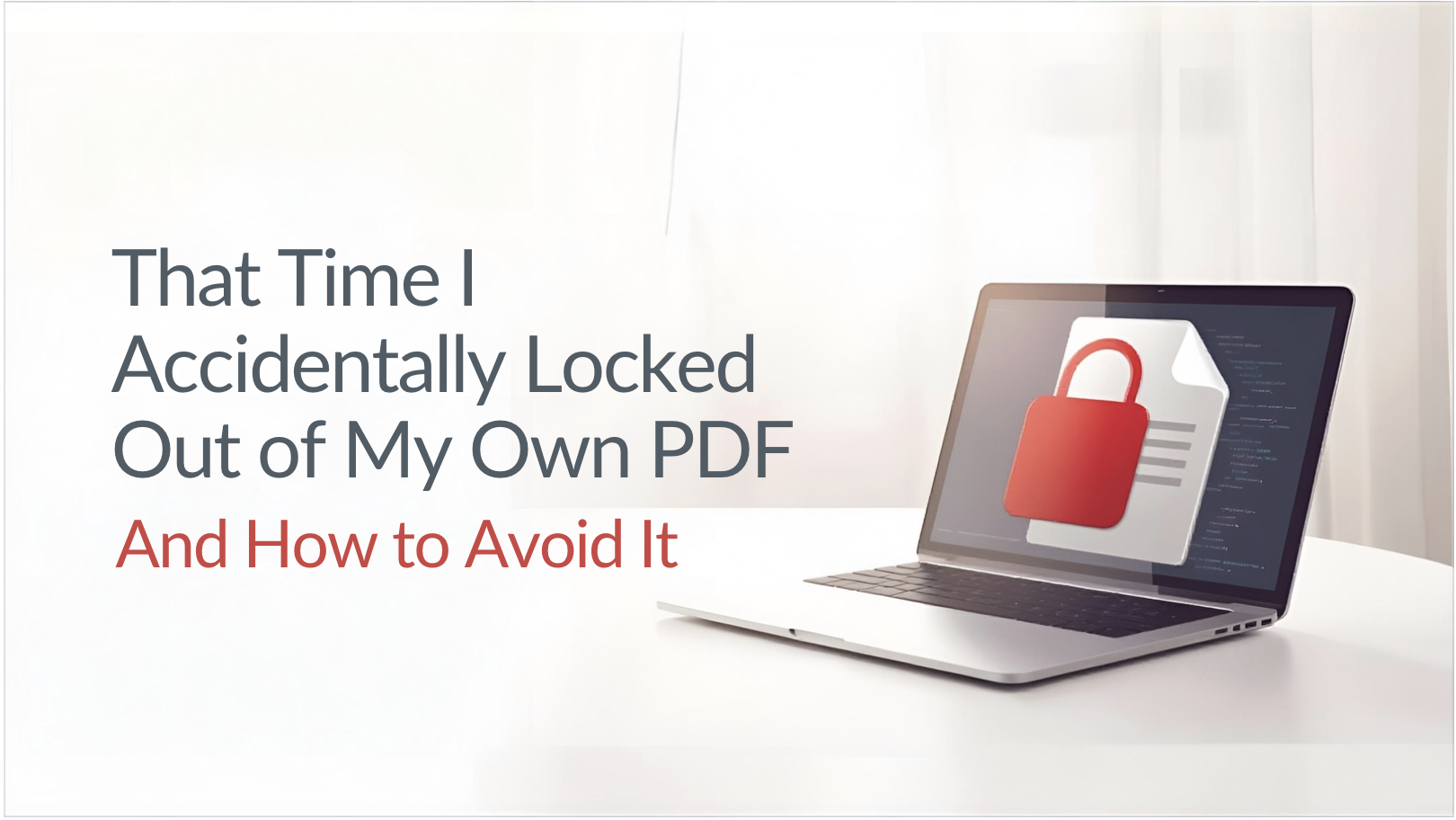
This is embarrassing to admit, but I'm sharing it because I know I'm not the only one who's done this. Last month, I created a PDF with sensitive client information. Being security-conscious (or so I thought), I added a password to it before sending.
Smart move, right? Except I used a "secure" random password from my password manager, saved the PDF, closed it... and never actually saved that password anywhere. The client needed an updated version two days later, and I couldn't open my own file.
Cue panic.
The Mistake Most People Make With PDF Passwords
After talking to some IT friends about my predicament, I learned that this happens ALL THE TIME. People treat PDF passwords like door locks - set it and forget it. But unlike your house key, there's no locksmith who can just make you a new one.
The fundamental issue is that there are actually TWO types of PDF passwords, and most people don't know the difference:
User Password (Open Password): This prevents anyone from opening the document at all. You can't view it without the password. This is what I had set on my file.
Owner Password (Permissions Password): This lets people view the PDF, but restricts what they can do - like printing, copying text, or editing. More on this later.
I had set a user password. The nuclear option. The "you shall not pass" of PDF security.
What I Tried First (Spoiler: Didn't Work)
Like any reasonable person in 2024, I started googling. Found approximately 47 tools claiming to "instantly unlock any PDF." Tried about a dozen of them.
Here's what happened:
Method 1 - Online "PDF Password Removers": These only work if you know the password already OR if the PDF just has an owner password (the permissions one). Since I had a user password and didn't know it, these were useless. Also, uploading confidential documents to random websites? Sketchy.
Method 2 - Desktop Software: Downloaded a few programs that promised to "crack" PDF passwords. They worked by trying common passwords (brute force). I let one run overnight. It tried about 3 million combinations. Still didn't find my randomly-generated 16-character password. ETA to crack it: approximately 247 years.
Method 3 - Asking Reddit: Got some sympathy and a lot of "you're screwed" responses. Not helpful, but at least honest.
The Reality Check Nobody Wants to Hear
If you set a strong user password on a PDF and then forget it, you're probably not getting back in. Modern PDF encryption (128-bit AES or 256-bit AES) is actually pretty solid. It's DESIGNED to be unbreakable without the password.
This is good for security. Bad for people like me who lock themselves out.
The only realistic hope is if:
- You used a weak password (like "password123")
- The PDF is older and uses 40-bit encryption (pretty rare now)
- You can narrow down what the password might be
None of these applied to my situation.
How I Actually Solved My Problem
Okay, so I didn't "crack" the password. Here's what I did:
I still had the original source file (a Word document) that I had converted to PDF. I recreated the PDF from scratch, re-typed the one paragraph I had changed, and sent that to the client instead.
Took me 45 minutes. Not ideal, but better than waiting 247 years for password-cracking software.
Lesson learned: Always keep your source files. If you're creating PDFs from Word, PowerPoint, Excel, etc., keep those original files. They're your backup if something goes wrong with the PDF.
The System I Use Now (So This Never Happens Again)
After this disaster, I completely changed how I handle PDF passwords. Here's my current system:
For Documents I Need to Keep Secure:
Use my password manager properly: When I create a password-protected PDF, I immediately add it to my password manager with a clear label. Something like "Client_ABC_Contract_PDF_Password." I do this BEFORE closing the PDF.
Test the password immediately: After saving the password-protected PDF, I close it and try to open it again using the password from my password manager. This confirms both that the password works AND that I saved it correctly.
Share passwords separately: If I'm sending a password-protected PDF to someone, I send the password through a different channel (text message, phone call, separate email). This is both more secure and ensures I can't lose the password.
For Documents That Don't Need Fort Knox Security:
Honestly? I stopped password-protecting most PDFs. Here's why:
For most business documents, email security is good enough. If I'm emailing a proposal or contract to a client, the email itself goes through encrypted channels (TLS). Unless someone has hacked their email, they're not intercepting my PDF anyway.
I reserve password protection for truly sensitive stuff: documents with SSNs, financial records, medical information, legal documents with confidential details.
Everything else? Just send it normally. Saves hassle and eliminates the risk of locking myself out.
Understanding Owner Passwords vs. User Passwords
This is the part I wish I had understood earlier. There are different levels of PDF security, and they serve different purposes.
Owner Password (Permissions):
This is actually more useful for most business scenarios. You can open and view the PDF without a password, but you can't:
- Print it
- Copy text from it
- Edit it
- Add comments or annotations
This is perfect for things like proposals you send to clients. They can read it, but they can't easily steal your content or modify your terms.
And here's the key thing: if you forget an owner password, you can still VIEW the document. You just can't edit or print it. Way less catastrophic than a user password.
User Password (Open):
This is the nuclear option. You need the password just to open the file. Use this for genuinely confidential documents.
But here's my new rule: I ONLY use user passwords when I'm also keeping an unprotected backup copy somewhere secure (like an encrypted folder on my computer or in my password manager's document storage).
What to Do If You're Currently Locked Out
If you're reading this because you're locked out of your own PDF right now, here are your realistic options, ranked by likelihood of success:
Option 1 - Check everywhere for that password:
- Your password manager (obviously)
- Email sent to yourself
- Old text files where you might have temporarily stored it
- Sticky notes (physical or digital)
- Your browser's saved passwords (some people save them there)
Option 2 - Try variations of passwords you commonly use:
I know, I know, you should use unique passwords for everything. But realistically, if this was a PDF you created for yourself, you might have used a pattern you often use. Try variations.
Option 3 - Recreate from source:
If you still have the original Word doc, Excel file, or whatever you created the PDF from, just recreate it. Painful but effective.
Option 4 - Contact whoever you sent it to:
If you shared this PDF with someone else, they might have saved the password. Worth a shot.
Option 5 - Accept defeat and start over:
Sometimes you just have to recreate the document from scratch. Not fun, but it happens.
Free vs. Paid Password Recovery Tools
I spent money on this, so you don't have to. Here's what I learned:
Free online tools are basically useless for strong user passwords. They can sometimes remove owner passwords (the permissions kind), but that's about it.
Paid desktop software ($40-100 range) uses more sophisticated brute-force methods. They can crack weak passwords in hours or days. Strong passwords? You're looking at months or years of processing time.
The expensive "professional" services ($200+) are mostly just running the same brute-force attacks with better hardware. They're not magic.
Bottom line: if you have a truly strong password on a modern PDF, you're probably not getting in. Save your money.
Best Practices I Follow Now
After learning this lesson the hard way, here's my current approach to PDF security:
Decide if you really need password protection: Most documents don't. Email security is usually sufficient.
For moderately sensitive docs, use owner passwords: This lets people view but not easily steal or modify your content. Good middle ground.
For truly confidential docs, use user passwords BUT:
- Save the password in a password manager immediately
- Test it before considering the job done
- Keep an unprotected backup in secure storage
- Share the password through a separate secure channel
Always keep source files: That Word doc or Excel spreadsheet might save you hours of frustration.
Use descriptive names in your password manager: "PDF Password" isn't helpful when you have 20 PDFs. "2024_TaxReturn_PDF" is better.
The Irony of PDF Security
Here's what struck me about this whole experience: PDF passwords are simultaneously too strong and not strong enough.
They're too strong in that you can permanently lock yourself out of your own files. There's no "forgot password" link. No admin override. No customer support to call.
They're not strong enough in that owner passwords (the permissions kind) can be easily bypassed with free tools. They're more of a suggestion than actual security.
So we end up with this weird situation where the security that actually works is also the security that can bite you if you're not careful.
When Password Protection Actually Makes Sense
Don't let my cautionary tale scare you away from PDF passwords entirely. They're useful for:
- Emailing tax documents: W-2s, 1099s, etc. Use the person's SSN or birthdate as the password and tell them separately.
- Sharing confidential client data: Medical records, legal documents, financial statements.
- Distributing proprietary content: If you're sending a PDF report to paid subscribers, password protection ensures it's not freely shared.
- Internal company documents: Especially in industries with compliance requirements.
Just make sure you're following the best practices above. Don't end up like me, panicking because you can't open your own file.
Final Thoughts
Locking myself out of that PDF was frustrating, but it taught me to be more intentional about document security. Not everything needs to be Fort Knox. And when something does need protection, it's worth taking an extra 30 seconds to do it right.
If you're about to password-protect a PDF right now, do yourself a favor: save that password somewhere secure BEFORE you close the file. Your future self will thank you.
And if you're currently locked out of a PDF? My condolences. Check for source files, try the password variations trick, and if all else fails, consider it a learning experience. An annoying, time-consuming learning experience, but a learning experience nonetheless.