Got a PDF form from our legal department. Needed to fill it out. Opened it in my usual PDF editor, typed in my information, saved it. Sent it back.
Got a call from legal 20 minutes later. "Where did all the instructions go?"
Instructions? What instructions? The PDF I was looking at was just blank form fields.
Turns out, those instructions were on a hidden layer in the PDF. When I edited and saved the document, my PDF editor had automatically flattened it - deleting all the layers I couldn't see. Including the instructions that legal needed.
Yeah. That was a fun conversation.
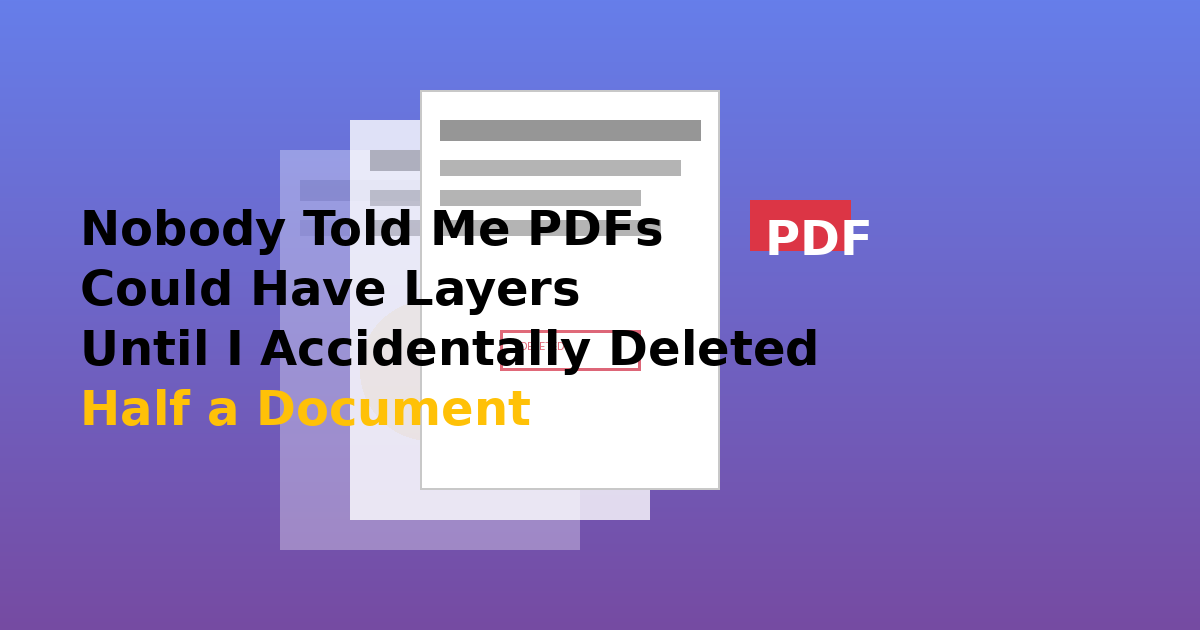
PDFs Have LAYERS? Since When?
This was news to me. I thought PDFs were just static documents. Like a digital piece of paper. Turns out they can have layers, just like Photoshop files.
Who uses PDF layers? More people than you'd think:
- Architects and engineers: Different layers for structure, electrical, plumbing, etc.
- Designers: Layers for different language versions or different client options
- Legal departments: (Like mine) Instructions on one layer, fillable form on another
- Publishers: Comments and markup on separate layers from the final content
The problem is that most PDF readers don't make it obvious when a document has layers. You could be looking at one layer without knowing other layers exist.
How I Should Have Known
Looking back, there were clues I missed:
The file size was weird: The PDF I downloaded was 2.1MB. After I edited and saved it, it was 680KB. Should have been a red flag that something got deleted.
The save dialog warned me: My PDF editor popped up a message about "flattening layers" when I saved. I clicked "OK" without reading it because, like everyone else, I don't read dialog boxes.
The original filename had "LAYERED" in it: The file was called "Employee_Form_LAYERED_v3.pdf" which seems obvious in retrospect.
But at the time? I just wanted to fill out the form and get it back to legal. Didn't pay attention to any of this.
What Flattening Actually Does
When you "flatten" a PDF with layers, you're basically taking all the visible layers and merging them into one single layer. Everything that was hidden gets deleted permanently.
It's like taking a Photoshop file with 20 layers and choosing "Flatten Image." All those layers collapse into one. You can't undo it after saving.
Some PDF editing software does this automatically when you save. Others ask you first. Some give you the option to preserve layers.
The problem is that most people (like me) don't even realize there are layers to preserve, so they just click through the dialogs and accidentally delete content.
How to Check if a PDF Has Layers
After my embarrassing mistake, I learned how to actually check for layers before editing a PDF. Here's how:
In Adobe Acrobat (Full Version):
There's a Navigation panel on the left side. Click the "Layers" button (it looks like stacked sheets of paper). If the PDF has layers, you'll see a list of them here. If it doesn't, the panel will say "No layers available."
You can turn layers on and off by clicking the eye icon next to each layer name. This is super useful for seeing what's on each layer.
In Adobe Acrobat Reader (Free):
Same thing - look for the Layers panel on the left navigation. If you can't see it, go to View > Show/Hide > Navigation Panes > Layers.
In Other PDF Readers:
This is where it gets tricky. Many free PDF readers don't show layers at all. Preview on Mac, for example, completely ignores layers. It just shows you all visible layers merged together.
If you're using a free reader and you suspect a PDF might have layers, open it in Adobe Reader (also free) to check. Better safe than sorry.
The Different Types of Layers I've Encountered
Since my mistake, I've started paying attention to layers in PDFs I receive. Here are the common types I've seen:
Instruction Layers: Like my legal form. Instructions are on one layer, the actual form is on another. You're supposed to turn off the instructions layer before printing or submitting.
Language Layers: Multilingual documents might have English on one layer, Spanish on another, etc. Turn on whichever language you need.
Draft vs. Final Layers: Design documents might have a "Draft" watermark on one layer. Turn it off when the design is approved.
Comment Layers: Markup and annotations on a separate layer from the main content. Useful for reviews.
Optional Content Layers: Technical docs might have "Basic" and "Advanced" layers, so readers can choose their complexity level.
How to Edit a Layered PDF Without Breaking It
Okay, so you've confirmed your PDF has layers and you need to edit it. How do you do it without accidentally deleting everything?
Option 1: Use software that preserves layers
Adobe Acrobat (the paid version) is the safest choice. When you edit a layered PDF in Acrobat, it preserves all layers by default. You have to explicitly choose to flatten if you want to.
Some other professional PDF editors also preserve layers, but you need to check the documentation to be sure.
Option 2: Flatten manually AFTER making a backup
If you know you're going to flatten the layers anyway:
- Save a copy of the original layered PDF first
- Turn on/off the layers you want visible
- Then flatten and edit
This way you still have the original if you need to go back.
Option 3: Edit only on the correct layer
If you're using Acrobat or another layer-aware editor, you can actually choose which layer to edit. Make sure you're editing the right layer, not accidentally creating a new one or editing the wrong one.
When You SHOULD Flatten Layers
Despite my cautionary tale, there are good reasons to flatten a PDF:
File size reduction: Layered PDFs are bigger. If you're emailing a large document and don't need the layers, flattening can reduce file size significantly.
Compatibility: Not all PDF readers support layers properly. Flattening ensures everyone sees the same thing.
Finality: When a document is truly final and you don't need layer flexibility anymore, flattening prevents accidental changes.
Printing: Some printers struggle with layered PDFs. Flattening ensures reliable printing.
Just make sure you're doing it intentionally, not accidentally.
The Rescue Mission: Recovering Deleted Layers
After I deleted those instructions, I panicked. Was there any way to get them back?
Short answer: Maybe, if you're lucky.
Option 1 - Check your backups: If you have Time Machine (Mac) or File History (Windows) enabled, you might be able to restore an older version of the file.
Option 2 - Check your email: If someone sent you the PDF, it's probably still in your email with all layers intact.
Option 3 - Ask for a fresh copy: Not ideal, but sometimes the only option. In my case, legal had the original and sent me a new copy.
Option 4 - Check cloud service version history: If the PDF is in Google Drive, Dropbox, or OneDrive, these services often keep version history. You might be able to restore the layered version.
Unfortunately, there's no "undelete layers" function in PDF software. Once they're gone and the file is saved, they're gone.
Red Flags That a PDF Might Have Layers
I now look for these warning signs before editing any PDF:
- File name includes "LAYERED," "DRAFT," or "MULTILINGUAL"
- File size seems larger than expected for the visible content
- Document properties mention "optional content" or "layers"
- The PDF came from a design firm or architectural firm (they love layers)
- It's a complex form or technical document
When I see any of these, I open the PDF in Adobe Reader first to check the Layers panel before doing any editing.
Creating Your Own Layered PDFs
After understanding layers, I actually started using them myself. They're pretty useful for certain scenarios.
I created a proposal template with layers for:
- Company logo (so I can swap it for clients' white-label versions)
- Pricing tables (different tiers on different layers)
- Terms and conditions (can hide this for preliminary versions)
To create layers, you need Adobe Acrobat or similar professional software. You can't do it in free PDF readers.
The workflow is usually:
- Create content on different layers in your source program (Photoshop, Illustrator, InDesign)
- Export to PDF with "Create Acrobat Layers" option enabled
- Or create layers directly in Acrobat using the Layers panel
Common Mistakes People Make With PDF Layers
Since my incident, I've talked to a bunch of people who've had similar problems. Here are the most common mistakes:
Printing with the wrong layers visible: Someone prints a "Draft" watermark because they forgot to turn off that layer. The printouts all say DRAFT in huge letters.
Sharing with layers they didn't mean to share: Sending a PDF with an "Internal Notes" layer visible. Whoops.
Assuming all PDF readers show the same thing: Layers might display differently (or not at all) in different readers. Always check.
Not documenting which layers are which: Coming back to a layered PDF months later with no idea what "Layer 5" is supposed to be.
My Current Workflow
Here's what I do now whenever I get a PDF I need to edit:
- Open in Adobe Reader first (even if I plan to edit in something else)
- Check the Layers panel to see if layers exist
- If layers exist:
- Note what's on each layer
- Save a backup copy of the original
- Decide if I need to preserve layers or if flattening is okay
- Then proceed with editing
Takes an extra minute. Has saved me from disaster multiple times.
Tools I Use
For viewing and checking layers: Adobe Acrobat Reader (free)
For editing while preserving layers: Adobe Acrobat Pro (paid, unfortunately)
For simple edits where I don't care about layers: Various free online PDF editors
The key is matching the tool to the task. Don't use a simple editor on a complex layered PDF.
Final Thoughts
PDF layers are one of those features that's incredibly useful when you know about it and incredibly frustrating when you don't.
The worst part is how invisible they are. There's often no indication that a PDF has layers unless you specifically check. You can accidentally delete important content without even realizing it exists.
My advice: assume any professional or complex PDF might have layers until proven otherwise. Take 30 seconds to check before editing. Way easier than explaining to your legal department why you deleted their instructions.
And if you're creating PDFs for others to use, consider whether layers are really necessary. They're powerful, but they're also a potential source of confusion and mistakes. Sometimes a simple, single-layer PDF is the better choice.